 Domain SearchSecure your perfect UAE domain in seconds.
 Domain TransferSeamless domain transfer. Zero downtime, complete control.
 All TLDsSecure your ideal domain. Explore local UAE and international extensions.
 WHOIS LOOKUPCheck domain ownership, expiry dates, and registrar details instantly.
 AE DomainRegister a .AE domain and build trust in the UAE.
 SSL CertificatesProtect your site with trusted SSL Certificates to secure data and build customer confidence.
 .com DomainGet the world’s most trusted domain and build credibility from day one.
 Web hostingFind budget-friendly hosting that doesn’t compromise on performance.
 Windows HostingHigh-performance hosting for Windows applications and websites.
 Affiliate ProgramBecome a partner and earn commission for every referral.
 WordPress HostingBlazing-Fast WordPress Hosting, Optimised for Performance.
 Email HostingSecure your communications with professional email hosting. Use your domain, stay in control.
 Reseller HostingLaunch your own hosting brand. We handle the tech, you grow your business.
 cPanel HostingHosting supported by cPanel (simple and user-friendly)
 VPS HostingVirtual servers that grow with you. Full root access. Blazing fast performance.
 Managed VPS HostingNot a tech expert? Let us handle everything with our fully managed VPS hosting.
 Dedicated ServersEnjoy full access and total control over your dedicated physical server.
 AI Website BuilderBuild beautiful websites instantly with AI.
 Online ShopCreate a professional online store. No coding needed.
 Web Design ServicesGet a custom website built for your brand and your goals.
 BlogDiscover resources on web hosting, e-commerce, digital marketing, and beyond.
 Contact UsWe are available 24/7 via chat or email
 SupportExplore guides and answers for all our services
DNS management confused Rashid for weeks. His Karachi-based textile business needed a website, but every hosting provider threw technical terms at him. A records, CNAME, MX records. What did any of it mean?
You’re probably like Rashid. You bought a domain, signed up for hosting, and now you’re staring at a dashboard that looks like mission control.
Here’s the thing: DNS management isn’t rocket science. It’s just poorly explained.
This guide breaks down everything you need to know. No jargon. No confusion. Just practical knowledge you can use today.
What DNS Actually Does for Your Website
Think of DNS as your website’s GPS system.
When someone types your domain name, DNS tells their browser exactly where to find your site. Without it, people would need to remember strings of numbers like 192.168.1.1 instead of yourwebsite.com.
That’s it. That’s DNS in one sentence.
The Address Book Analogy
Your phone stores contacts so you don’t memorize numbers. DNS does the same thing for websites.
Someone types truehost.cloud, DNS looks up the matching IP address. The browser connects. Your site loads.
Simple, right?
But here’s where most guides get it wrong. They explain what DNS is without showing you why it matters to your business.
Why Global Business Owners Need DNS Knowledge
Sarah runs an online boutique from Toronto. She hired a developer who vanished after building her site.
Her email stopped working. She couldn’t access her own website settings.
Why? The developer controlled her DNS. Sarah didn’t even know what that meant.
Don’t be Sarah.
Learning DNS management gives you three critical advantages. You can switch hosting providers without losing sleep. You control your email setup completely. And you troubleshoot problems yourself instead of paying consultants $100 per hour.
Rashid figured this out after his first hosting nightmare. Now he manages five business domains without help.
The Four DNS Records Every Website Owner Must Understand
Let’s get practical. These four record types handle 90% of what you’ll ever need.
Master these and you’re ahead of most website owners globally.
A Record
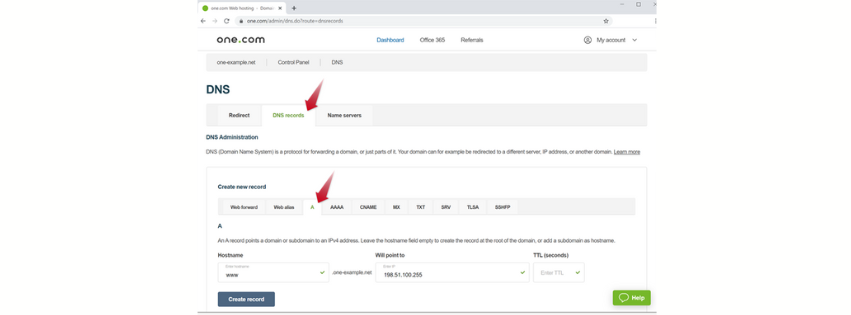
The A record points your domain to your website’s location.
Think of it as your business address. When customers look for you, this record tells them exactly where to go.
Here’s a real example. Rashid’s domain rashidtextiles.com points to IP address 203.0.113.45. That’s his A record.
When you’ll change your A record:
- Moving to a new web host
- Setting up a fresh website
- Switching servers for better performance
Most hosting companies provide the IP address when you sign up. You just plug it into your DNS settings.
The process takes five minutes once you know where to look.
Rashid messed this up initially. He changed hosting providers but forgot to update his A record. His website showed a blank page for two days.
Learning from mistakes saves you from making the same ones.
CNAME Record
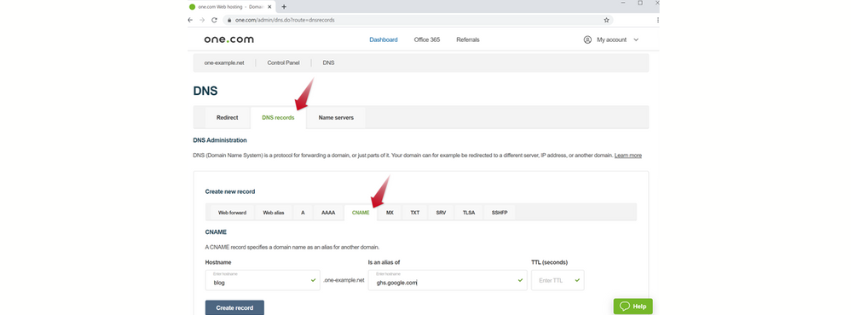
CNAME records are like nicknames for your website.
They point one domain name to another domain name. This sounds confusing until you see an example.
Rashid wanted blog.rashidtextiles.com to work. But his blog actually lived on Medium. A CNAME record connected them.
Common uses that actually matter:
- Making www.yoursite.com work alongside yoursite.com
- Connecting subdomains to third-party services
- Setting up branded links for marketing campaigns
Here’s what tripped up Sarah from Toronto. She created a CNAME for her shop subdomain but used it on her root domain. That’s not allowed.
CNAME records can’t exist on your main domain. Only on subdomains.
Technical limitation worth remembering.
MX Record
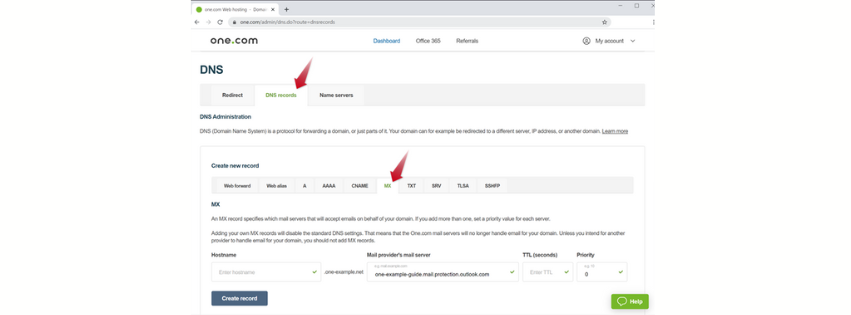
MX stands for Mail Exchange. This record tells email where to go.
Without proper MX records, your business email stops working. Customers email you. Messages bounce back. You lose sales.
Rashid experienced this firsthand after transferring his domain.
His MX records didn’t transfer with it. For three days, customer inquiries vanished into the void. He only noticed when a major order almost fell through.
Setting up MX records correctly:
First, you need an email provider. Google Workspace, Microsoft 365, or even your hosting company’s email service.
They’ll give you specific MX records to add. Usually two or three entries with priority numbers.
The priority numbers matter. Lower numbers get checked first. If mail fails at priority 10, it tries priority 20 next.
Here’s a typical setup for Google Workspace:
| Priority | Mail Server |
|---|---|
| 1 | ASPMX.L.GOOGLE.COM |
| 5 | ALT1.ASPMX.L.GOOGLE.COM |
| 10 | ALT2.ASPMX.L.GOOGLE.COM |
Copy these exactly as your provider specifies. One typo breaks everything.
Sarah learned this while setting up her boutique email. She accidentally typed ASPMX instead of ASPMX.L. Small mistake, big headache.
Nameservers
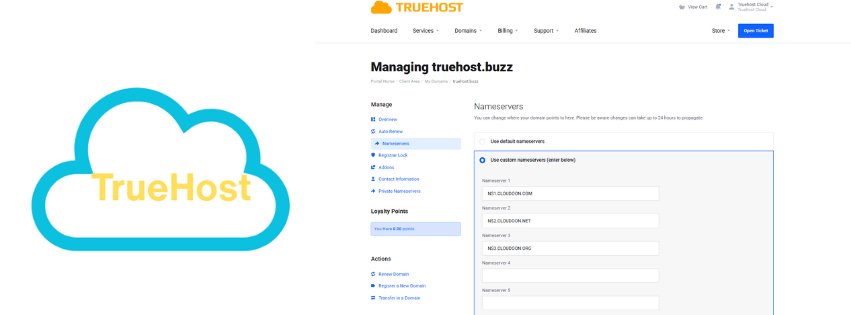
Nameservers are where all your DNS records live.
Think of them as the filing cabinet holding your website’s entire address book. When you change nameservers, you’re moving that cabinet to a different location.
Most domains start with your registrar’s nameservers. GoDaddy domains use GoDaddy nameservers by default. Namecheap domains use Namecheap nameservers.
When you change nameservers:
Switching to a new host often requires this. Many hosting companies, including providers like truehost.cloud, give you custom nameservers when you sign up.
You replace the old ones with the new ones. Simple swap.
But here’s the catch everyone forgets. Changes take time to spread globally.
DNS propagation can take 24 to 48 hours. Sometimes longer.
Rashid changed his nameservers at 9 AM. His site still showed the old host at 3 PM. He panicked and changed them back. Big mistake.
The changes were still spreading. He just needed patience.
How Different DNS Records Work Together
Understanding individual records helps. Seeing how they connect changes everything.
Let me show you Rashid’s complete setup.
His domain rashidtextiles.com uses nameservers from his hosting company. Those nameservers store an A record pointing to his website’s IP address. A CNAME record makes www redirect properly. And his MX records route email to Google Workspace.
Four different record types working as one system.
When customers visit his site, here’s what happens. Their browser asks DNS for rashidtextiles.com. The nameservers provide the A record. The browser connects to that IP. The website loads.
For email, the process differs slightly. When someone emails [email protected], their email server checks his MX records. Those records point to Google’s servers. Google receives the message. Rashid sees it in Gmail.
Different records, different purposes, same DNS system.
Practical DNS Management: What You’ll Actually Do
Theory helps. Practice matters more.
Let’s walk through the real tasks you’ll face as a website owner globally.
Finding Your DNS Control Panel
Every domain registrar puts DNS settings somewhere different.
GoDaddy hides them under Domain Settings > Manage DNS. Namecheap lists them under Advanced DNS. Your host might have a separate DNS zone editor.
Frustrating? Absolutely.
Rashid spent an hour hunting for his DNS panel the first time. He clicked through every menu twice.
Here’s the shortcut: search your registrar’s help docs for DNS management. They’ll show you exactly where to click.
Making Your First DNS Change Safely
Never change DNS settings without a backup plan.
Screenshot everything first. Write down current values. Note the date and what you’re changing.
Sarah ignored this advice. She edited three records at once trying to save time. Something broke. She couldn’t remember what she’d changed.
Support took six hours to fix it.
Safe change process:
- Document current settings
- Change one record at a time
- Wait for propagation
- Test thoroughly
- Move to the next change
Slow wins here. Speed creates problems.
DNS Tools That Save Your Sanity
You can’t see DNS propagation happening. That’s what makes waiting so frustrating.
WhatsmyDNS.net shows you real-time DNS status globally. Enter your domain, select record type, click search.
You’ll see which countries show old values and which show new ones. Green means updated. Red means still propagating.
Rashid checks this after every DNS change. It stops him from panicking when updates take time.
Another useful tool is DNSChecker.org. Similar function, different interface. Some people prefer one over the other.
Use whichever makes sense to you.
Understanding TTL Settings
TTL means Time To Live. It tells systems how long to remember your DNS records.
Think of it like food expiration dates. Higher TTL means browsers cache your DNS info longer. Lower TTL means they check for updates more frequently.
Default TTL is usually 3600 seconds. That’s one hour.
Before major changes, smart administrators drop TTL to 300 seconds. Five minutes. This speeds up propagation because systems check for updates faster.
Rashid learned this trick from a forum. Cut his DNS change time in half.
Common DNS Problems and Real Solutions
Everyone makes mistakes with DNS management. The question is whether you learn from them.
Let me share the issues that trip up most people globally.
Website Shows Old Host After Switching
This happened to Rashid twice before he understood propagation.
You switch hosts. Update DNS. Visit your site. Still shows the old host.
Don’t panic. Don’t change settings again.
Fix it properly:
Clear your browser cache completely. Try a different browser. Check on your phone using mobile data instead of WiFi. Test from a different location if possible.
Often the change completed but your local system cached the old information.
Give it 48 hours before assuming something’s wrong.
Email Stops Working Suddenly
Sarah’s biggest nightmare. Email worked fine, then suddenly stopped.
No messages in. No messages out. Complete silence.
Check these things first:
Verify your MX records still exist. Domain transfers sometimes wipe them. Confirm the priority numbers are correct. Make sure no typos crept in during recent changes.
Test email delivery using MXToolbox. This free tool checks if your MX records point to valid mail servers.
If everything looks correct but email still fails, contact your email provider. Sometimes issues happen on their end.
Subdomain Won’t Connect
You create shop.yoursite.com. Add a CNAME record. Nothing happens.
Rashid faced this setting up his wholesale portal.
The problem? He created the CNAME but pointed it to an IP address. CNAME records need domain names, not IPs.
Using an A record instead fixed it immediately.
Small distinction, big difference.
DNS Management for Growing Businesses
Your needs change as your business expands globally.
What worked for a simple site breaks down when you’re managing multiple domains, international traffic, and complex services.
When Free DNS Isn’t Enough Anymore
Basic DNS works fine initially. Then your business grows.
Customers in Europe complain about slow loading. Your site goes down and you can’t figure out why. You need advanced features your registrar doesn’t offer.
This is when managed DNS services matter.
Cloudflare offers free DNS with performance benefits. Their servers are faster and more reliable than most registrars. Plus you get built-in security features.
Rashid switched to Cloudflare after his third website outage. Load times dropped 30% globally. Downtime disappeared.
Setting up Cloudflare is straightforward. You create an account, add your domain, and change your nameservers. Cloudflare walks you through each step.
For businesses serving customers worldwide, this upgrade pays for itself in reliability.
Multiple Domain Strategy
Many businesses buy variations of their main domain.
yourcompany.com, yourcompany.net, yourcompany.co. Different extensions for different markets.
Managing DNS for multiple domains requires organization. Rashid uses a spreadsheet tracking every domain, its nameservers, and important records.
Sounds basic but it works.
When something breaks, he knows exactly where to look. No guessing. No wasted time.
SSL Certificates and DNS
Your website needs HTTPS to rank well and build trust. SSL certificates make this happen.
But SSL validation often requires DNS changes. Either adding specific TXT records or creating CNAME records for verification.
Your hosting provider or SSL issuer will specify what’s needed. Follow their instructions exactly.
Sarah skipped one TXT record during SSL setup. Her certificate failed validation. Cost her two days of troubleshooting.
Attention to detail matters here.
Taking Control of Your Domain
Rashid manages five domains now. Sarah handles her boutique site confidently. Both started knowing nothing about DNS management.
You can do this too.
Start simple. Log into your domain registrar. Find the DNS management section. Look at your current records without changing anything.
Familiarize yourself with the interface. Bookmark this guide for reference.
When you need to make changes, take it slow. One record at a time. Document everything. Test thoroughly.
DNS management becomes second nature with practice. The confusion you feel now? It fades fast once you’ve made a few successful changes.
Your next steps:
- Access your DNS control panel today
- Document your current settings
- Bookmark WhatsmyDNS.net for future checks
- Join website owner communities for support
Questions come up. That’s normal. Online communities and hosting forums have people who’ve solved your exact problem before.
If you’re setting up a new website or transferring domains, consider working with reliable hosting that includes DNS support. Services like truehost.cloud handle technical details while you maintain control of your domain.
Technical skills matter. But you don’t need to be an expert to manage DNS successfully.
You just need the right information and willingness to learn.
Rashid’s textile business thrives now. Sarah’s boutique grows monthly. Both credit understanding DNS management as a turning point.
Your website success story starts with taking control of your domain. Today’s the perfect day to start.
Quick Reference: DNS Records at a Glance
| Record Type | What It Does | When You Use It | Example |
|---|---|---|---|
| A Record | Points domain to IP address | Connecting domain to hosting | yoursite.com → 203.0.113.45 |
| CNAME | Creates domain aliases | Setting up subdomains | www.yoursite.com → yoursite.com |
| MX Record | Routes email delivery | Configuring business email | Priority 10 → mail.google.com |
| Nameservers | Stores all DNS records | Changing hosts or DNS provider | ns1.truehost.cloud |
Keep this table handy. You’ll reference it constantly during setup and troubleshooting.
DNS management empowers you to control your online presence completely. No more depending on developers who disappear. No more confusion about why your website or email stopped working.
You’ve got this. The technical barrier just dropped away.